WOCOM Meet
Video meetings, screen sharing, recordings and interview scheduling — included with your WOCOM phone service, not a separate subscription. Sign in with the same account you use for the phone system.
Start your meetingJoining a meeting
Guests need no account and nothing installed. The link opens in the browser and asks two things: your name, and permission to use your camera and microphone.
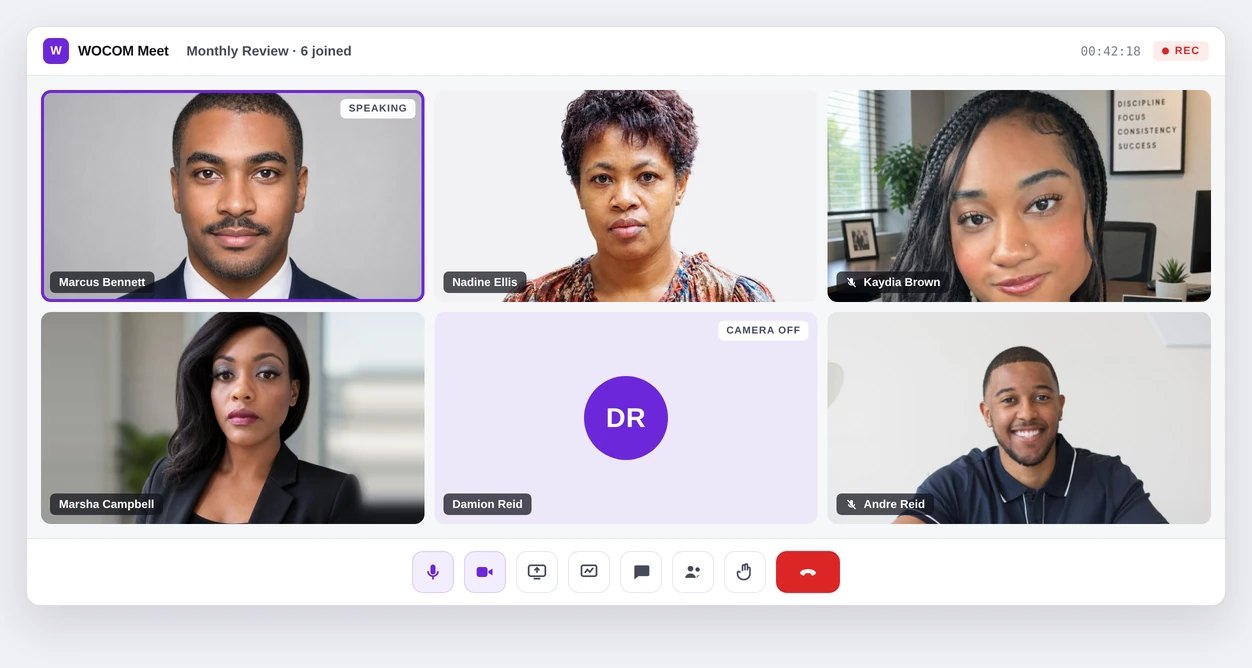
Four steps, in order
Open the link
Click the link you were sent. It opens in the browser — Chrome, Edge, Firefox, Safari or Opera, on any desktop or phone.
Enter your full name
Guests enter a first and last name. That is what the host sees when they admit you, so use the name you were invited under.
Check camera and microphone
Allow the browser prompt and confirm the right devices are picked. If you dismissed the prompt, the padlock in the address bar lets you grant access again.
Wait to be let in
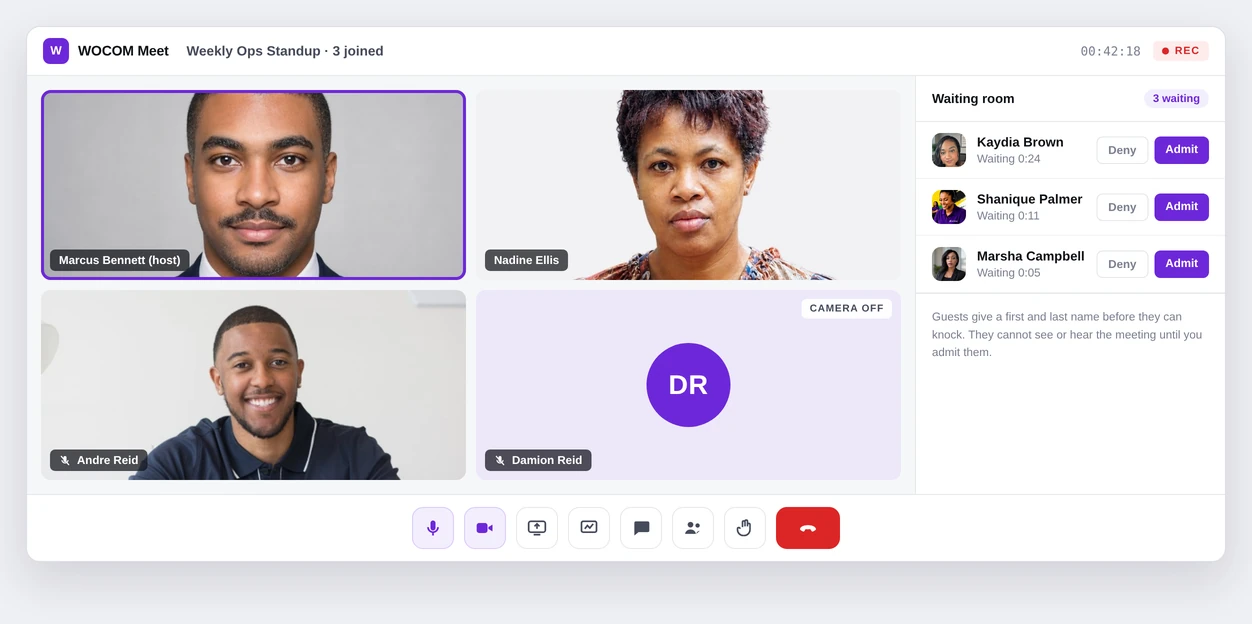
New meetings have the waiting room on by default. You cannot see or hear anything until the host admits you.
Inside the meeting
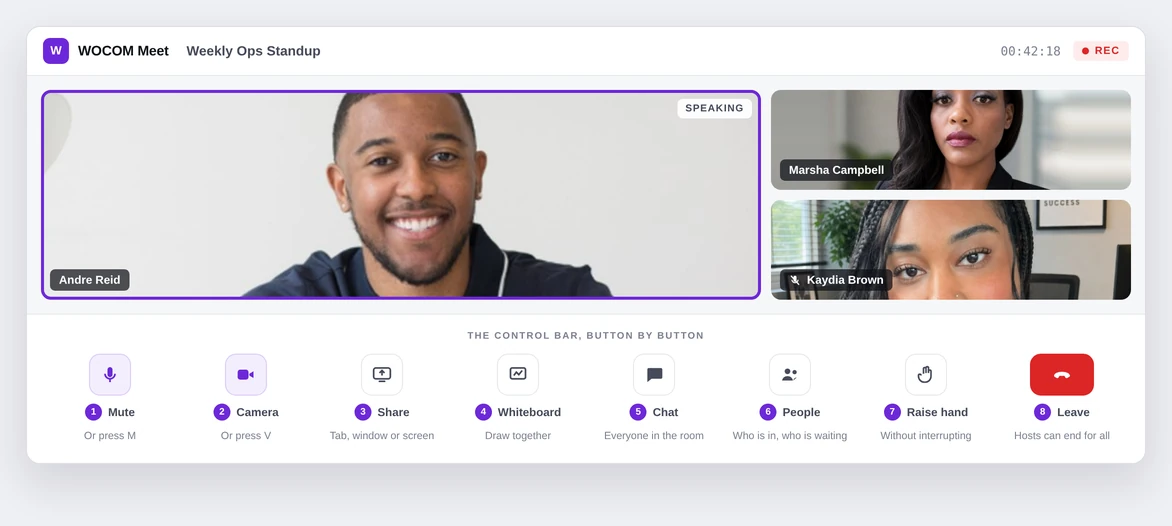
Switch between grid and speaker view, or go full screen — your layout is yours alone and changing it does not change anyone else’s screen. The control bar sits at the bottom and never moves.
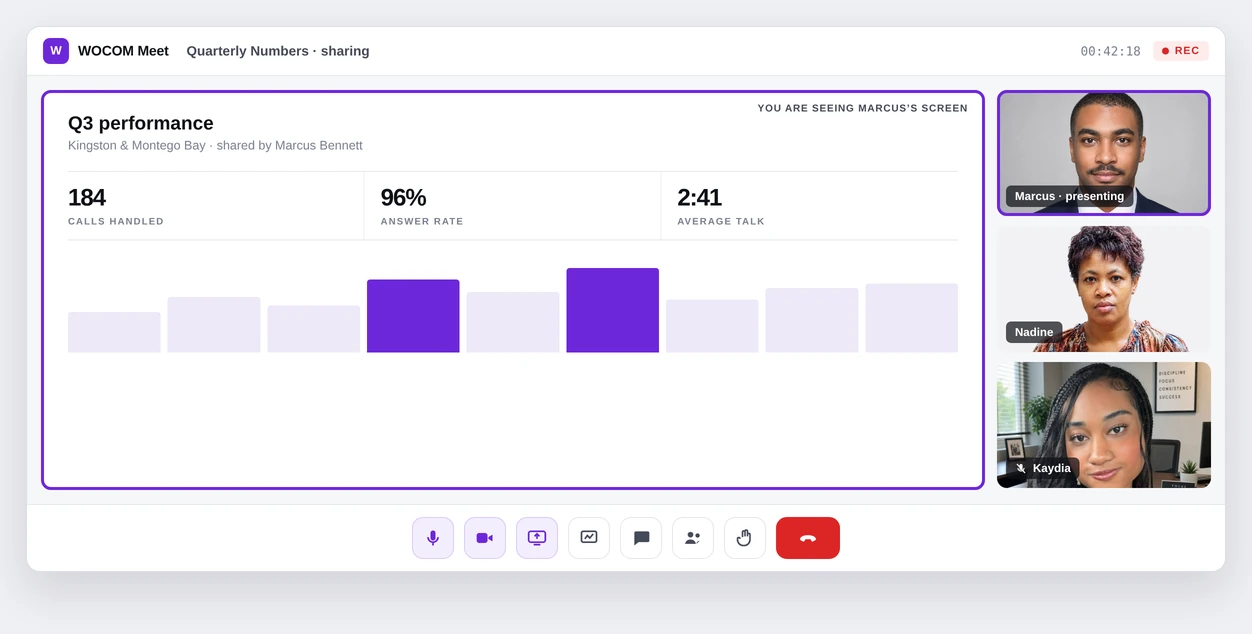
Sharing your screen
Share a tab, a single window, or the whole screen. Pick tab if you are playing video — it is the only option that carries the sound with it.
Running the room
The waiting room turns your link from a key into a knock. Guests are held outside — named, and unable to see or hear anything — until you let them in.
| Host control | What happens |
|---|---|
| Waiting room | On by default for new meetings. Guests must give a first and last name before they can knock. |
| Mute a participant | Enforced by the server, not by their browser. They can unmute themselves again — you are muting, not gagging. |
| Remove a participant | They leave immediately. The link still works unless you revoke it. |
| Guest permissions | Decide whether guests may share their screen, draw on the whiteboard or upload files. |
| Meeting PIN | A second factor on top of the link, for invitations you cannot fully control. |
| Revoking a link | Kills it for everyone, including anyone it was forwarded to. Issue a new one to continue. |
| Recording | Everyone is told the meeting is being recorded. The file lands in the account, not on your laptop. |
| Polls | You ask, everyone answers, results appear live. |
Afterwards
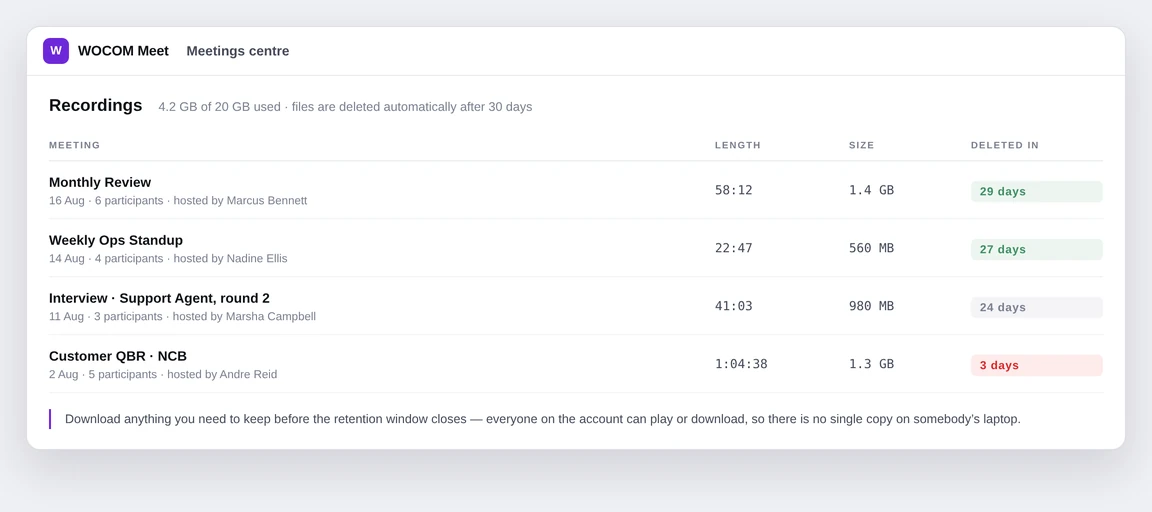
Every meeting you hosted or attended is listed with its participants and duration. Recordings sit in the account, not on one person’s machine.
What is included
20 GB of recording storage. Files are deleted automatically after 30 days, and shared files after 30 days as well — download anything you need to keep before the window closes.
Who can see them
Everyone on the account can play or download a recording. That is deliberate: it means a recording never lives in a single inbox.
Meetings, scheduled and repeating
Start one now
Open your meetings centre and choose Start one now. Share the link or the PIN with whoever should join. The meeting exists as soon as you start it.
Schedule ahead
Pick a date, time and title, add the people you want, and Meet emails the invitation. Meetings can repeat daily, weekly or on set days, and every occurrence keeps the same link.
Interviews
Meet includes a hiring workflow, which is what separates it from a plain video app.
| Step | What it involves |
|---|---|
| Positions & rounds | Set up a role and its stages — screening, technical, final — so every candidate goes through the same process. |
| Resumes | Candidates upload a CV, up to 15 MB each, attached to their application rather than sitting in an inbox. |
| Finding a time | Candidates pick from slots your panel is actually free for. No email chains. |
| The interview | A normal Meet room, opened from the schedule, with the candidate’s details beside it. |
| Scorecards | Each interviewer scores against the same criteria, so the decision rests on a comparison rather than a memory. |
| What the candidate sees | A simple join page — no account, no software, no admin panel. |
Administration
People and monitoring
Add or remove users, see meetings in progress, and check usage against your included storage.
Email and API keys
Control the invitations Meet sends, and issue API keys if you are embedding meetings in your own system.
Limits and requirements
| Limit | Value |
|---|---|
| People per meeting | 15 |
| Meeting length | 2 hours, extendable once by 30 minutes |
| Recording storage | 20 GB included, kept 30 days |
| Shared files | 25 MB per file, kept 30 days |
| Resume uploads | 15 MB each |
| Browsers | Chrome, Edge, Firefox, Safari and Opera — Windows, macOS, Linux, Android and iOS |
Something is wrong
The faults people actually hit, and what fixes them. Open the one that matches.
1Nobody can hear me
Check you are not muted, then check the microphone selected in the control bar — laptops often default to the wrong one.
2I cannot hear anyone
Check your output device and system volume. Headphones connected but idle are the usual culprit.
3My camera will not turn on
Another app is probably holding it. Close Teams, Zoom or the camera app and reload the page.
4Camera and microphone are blocked
The browser is refusing permission. Use the padlock in the address bar to allow them, then reload.
5The link says the meeting no longer works
It expired or was revoked. Ask the host for a new one.
6Stuck on “waiting to be let in”
The host has not admitted you yet. They can see you in the waiting room — message them if it drags on.
7Share does nothing
On macOS, screen recording permission must be granted to the browser in System Settings, then the browser restarted.
8I cannot draw on the whiteboard
The host has whiteboard access turned off for guests.
9My file will not upload
It is over 25 MB, or the host has file sharing off for guests.
10The meeting ended by itself
It reached the two-hour limit, or the extension had already been used.
11The recording has not appeared
Processing takes a few minutes after the meeting ends. If it is still missing after that, contact support.
12My guests did not get the invitation
Check the address, then their spam folder. Sending the link directly always works.
13A candidate says their interview link does not work
Re-issue it from the interview record — links are per candidate and per round.